EINSTIEGSGEHALT IN DER IT-BERATUNG
e-fellows.net gibt ein paar Zahlen zu marktüblichen Einstiegsgehältern in der Unternehmens- und IT-Beratung bekannt und hat auch noch ein paar Tipps zu Gehaltsverhandlungen für Berufseinsteiger parat. Auch bei Hobsons gibt es interessante Zahlen dazu.
Wie überall gilt: In Einzelfällen kann das Einstiegsgehalt ganz schön von den Durchschnittswerten abweichen, sowohl nach oben als auch nach unten. Bei einigen Firmen zählen Boni und Extras wie z.B. ein Firmenwagen zum Gehalt dazu, andere legen das noch oben drauf.
USING YOUR LOGITECH MULTIMEDIA KEYBOARD WITH OS X LEOPARD
Logitech, an industry leader in the computer peripherals market, provides an application called Logitech Control Center (LCC) to support their keyboards and mice under Mac OS X.
LCC internally used Unsanity’s Application Enhancer (APE) which unfortunately is not yet supported within OS X version 10.5 (Leopard). APE was one of the reasons why users weren’t able to straight-forwardly upgrade their Tiger installations to Leopard, ending up with some kind of blue screen once the installation was finished and they wanted to boot into their shiny new OS. Instructions for removing APE (highly recommended before upgrading to Leopard) can be found on the Apple support website.
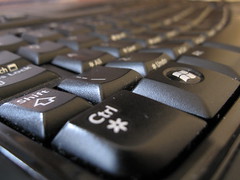 So far, the special keys (“iTouch”, “Search”, “Shopping” etc.) on the Logitech keyboards can’t be used with Leopard. But at least most of the Media Control buttons (skip forward/backward, play/pause and the volume control) actually work and those are almost the only special keys I need on that keyboard.
What bothered me was the fact that the key binding for the Windows/Option and the Alt/Apple/Command keys were mixed up: on my MacBook Pro, the order of the keys (from left to right) is Control, Option, Command. The Logitech keyboard uses the same labels on the keys but with the factory settings of OS X, the Windows key acts as Apple’s Command key and the Alt key is used as the Option key. This is quite strange because you’re always hitting the wrong keys when you’re often switching between “docked” mode (using an external keyboard when you’re working on your desk) and “road warrior” mode when you’re using the MBP’s internal keyboard.
Luckily, with Leopard you’re able to change the key bindings within the Keyboard & Mouse preference pane of OS X’s System Preferences individually for each keyboard that is connected to your Mac (see the screenshot below). The Logitech keyboard shows up as “USB Receiver” in the keyboards list. After selecting this from the list, just change the binding of the Option and Command keys to each other’s function and voilà — it’s working.
Logitech keyboard picture by bargainmoose, CC-licensed.
APPLE MAIL 3: USE GMAIL'S TRASH FOLDER
So, you just upgraded to Mac OS X Leopard and all its shiny new features including Mail (version 3). And you finally managed to integrate your GMail account using IMAP (woot!) into Mail. But what bothers you is the fact that when you delete mails, they still show up in the All Mails folder on the GMail web interface because they’re actually only marked as read and archived, not deleted.
Once you set up your GMail IMAP account correctly, make sure to check the “Move deleted messages to the Trash mailbox” and the “Store deleted messages on the server” checkboxes. If you want to, you may also set an expiration date for deleted mails but as GMail deletes messages in the Trash folder after 30 days, I left this option unchanged. After you close this window, navigate to your GMail mailbox in the left window pane of Mail.app.
You’ll find all your regular IMAP folders (All Mail, Sent, etc.) there as well as a list of the tags (a.k.a. labels) you’re currently using. You wonder why Trash doesn’t show up in my list? Well, I already set it up correctly, so the folder disappears from this list and appears aside of all other Trash folders.
You just have to perform a control-click (yes, you may also use your right mouse button) on the Trash folder and select “Use this folder for deleted messages” from the pop-up window.1 That’s it! From now on, your deleted messages are moved to GMail’s Trash folder and automagically cleaned up by GMail.
MAC OS X LEOPARD: FIRST IMPRESSIONS
Finally I also got my copy of the newest, freshest, shiniest OS X version ever… I don’t know how Apple does it, but I’m one of the guys who is always excited about new Apple products.
Although I read about best practices for installing Leopard on several web sites (most of them recommended either the archive and install or the clean install option), I wanted to give the update option at least a try – some of my friends confirmed that it seemed to work pretty well.
In the beginning, the installation ran very smoothly. I was upgrading from OS X 10.4.10 with all the latest updates installed. Unfortunately, I wasn’t able to login after the reboot. My MacBook Pro hung at the point where the Leopard introduction intro should appear.
So I decided to wipe out the internal hard drive of my MacBook Pro, performed a clean installation of Leopard and transferred my old applications and files using the Migration Assistant during the second phase of the installation from a backup I had created with SuperDuper! before. (note: it took almost 3 hours to copy all that stuff from my external Firewire drive – I really have to clean up…). But that gave me at least some time to further clean up the apartment I just moved into.
WASTE SEPARATION IN GERMANY
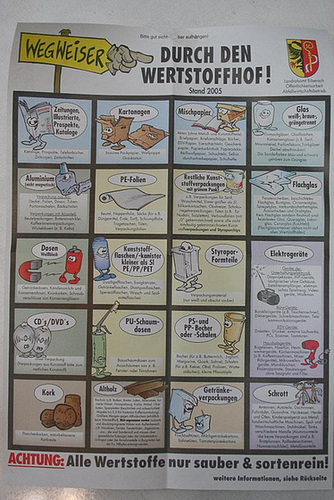
Almost everything is regulated in Germany and in some districts like Biberach (BC) some people tend to have too much spare time. So they spend their Saturday mornings at the local recycling site (“Wertstoffhof”) to separate their garbage.
We don’t only separate paper, glass and plastics (well, I’m used to that and think it’s a good idea)… You have to put all different sorts of garbage into the right container: Newspapers, packages, mixed papers, glass, tin foil, PE foil, other plastics, glass (again, this time only if in flat shape), cans (made from… tin foil), plastic containers with a volume of less than 5 liters, styrofoam pieces, CDs/DVDs, … You get the idea 😉